
Tasks and Kanban
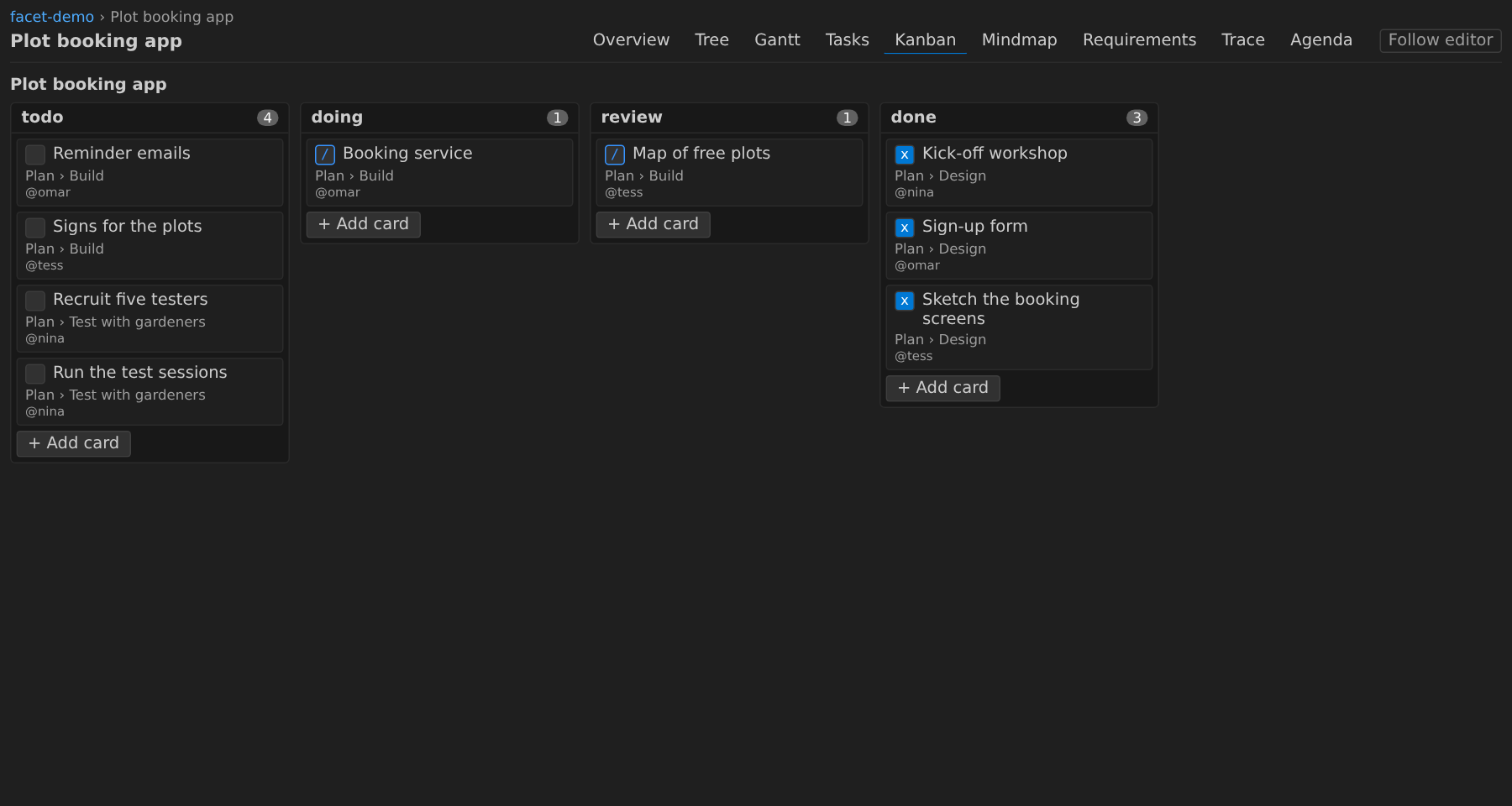
Two views show the tasks of a file or folder: Tasks, a list you can filter and sort, and Kanban, a board of cards in columns. Both are offered when there are checkbox tasks below what is shown.
A task is a checkbox item: [ ] to do, [/] in progress, [?] waiting,
[x] done, [-] cancelled. See Tasks.
The Tasks view lists every task at or below the shown file or folder, in a
table: state, title with where it lives (file and headings), owners,
priority, due:: date (with a mark on repeating tasks) and computed dates.
- The state chips at the top choose which states are listed. Open states (to do, in progress, waiting) are on at first.
- Filter narrows the list to tasks whose text matches.
- Sort by document order, due date or priority.
Edit from the list:
| Do | To |
|---|---|
| Click a checkbox, or Space on a row | tick or untick the task |
| Double-click a title, or F2 | rename it |
| Enter on a row | add a task after it |
| Tab on a row | add a task as its child |
| Delete or Backspace | delete the task and everything below it |
| + Add task | open the composer to add a task |
A new task is written - [ ] title. Click a title to select the task and
see its details; Ctrl+click (Cmd+click on macOS), Ctrl+Enter or “Go to
line” opens its line in the text editor.
Kanban
Section titled “Kanban”The Kanban view shows the leaf tasks as cards. A parent task with children is not a card, and cancelled tasks are hidden. Cards keep document order inside a column.
Columns
Section titled “Columns”By default the columns are the task states: To do, In progress,
Waiting and Done. To use your own columns, add a board: list to
the file’s frontmatter:
---board: [backlog, design, build, review, done]---# Website relaunch
- [ ] Collect old page list [status:: design]- [ ] Pick a font- [x] Choose a host
On a custom board:
status::says which column a task is in.- A task without
status::sits in the first column. - A done (
[x]) task sits in the last column, whatever itsstatus::. - A task whose
status::is not a column sits in the first column, flagged.
A board: in a folder’s index.md applies to every file below it, unless
a file has its own. A folder whose files use different boards shows one
section per board, and the state board for files without one.
Move cards
Section titled “Move cards”Drag a card to another column, or focus it and press Ctrl+Left or Ctrl+Right (Cmd on macOS). What Facet writes depends on the board:
- On the state board, moving a card sets its checkbox:
[ ],[/],[?]or[x]. - On a custom board, it writes
status:: <column>and leaves the checkbox alone. Moving to the last column only ticks the task; moving out of it unticks it to[ ]. Moving a task withoutstatus::to the first column writes nothing. - A repeating task moved to done is ticked like anywhere else: it stays
[ ]with a newlast::anddue::, so its card stays where it was.
Add, delete and navigate
Section titled “Add, delete and navigate”- + Add card at the bottom of a column adds a task in that column: with
that state on the state board, or with
status:: <column>on a custom board (nothing in the first column,[x]in the last). - Delete or Backspace on a focused card deletes the task.
- The arrow keys move focus between cards and columns. Enter selects the card; Ctrl+Enter or Ctrl+click opens its line.