
Mindmap
The Mindmap draws a file or folder in the centre, with its headings and list items as branches balanced to the left and right. It suits outlines and brainstorming as much as plans.
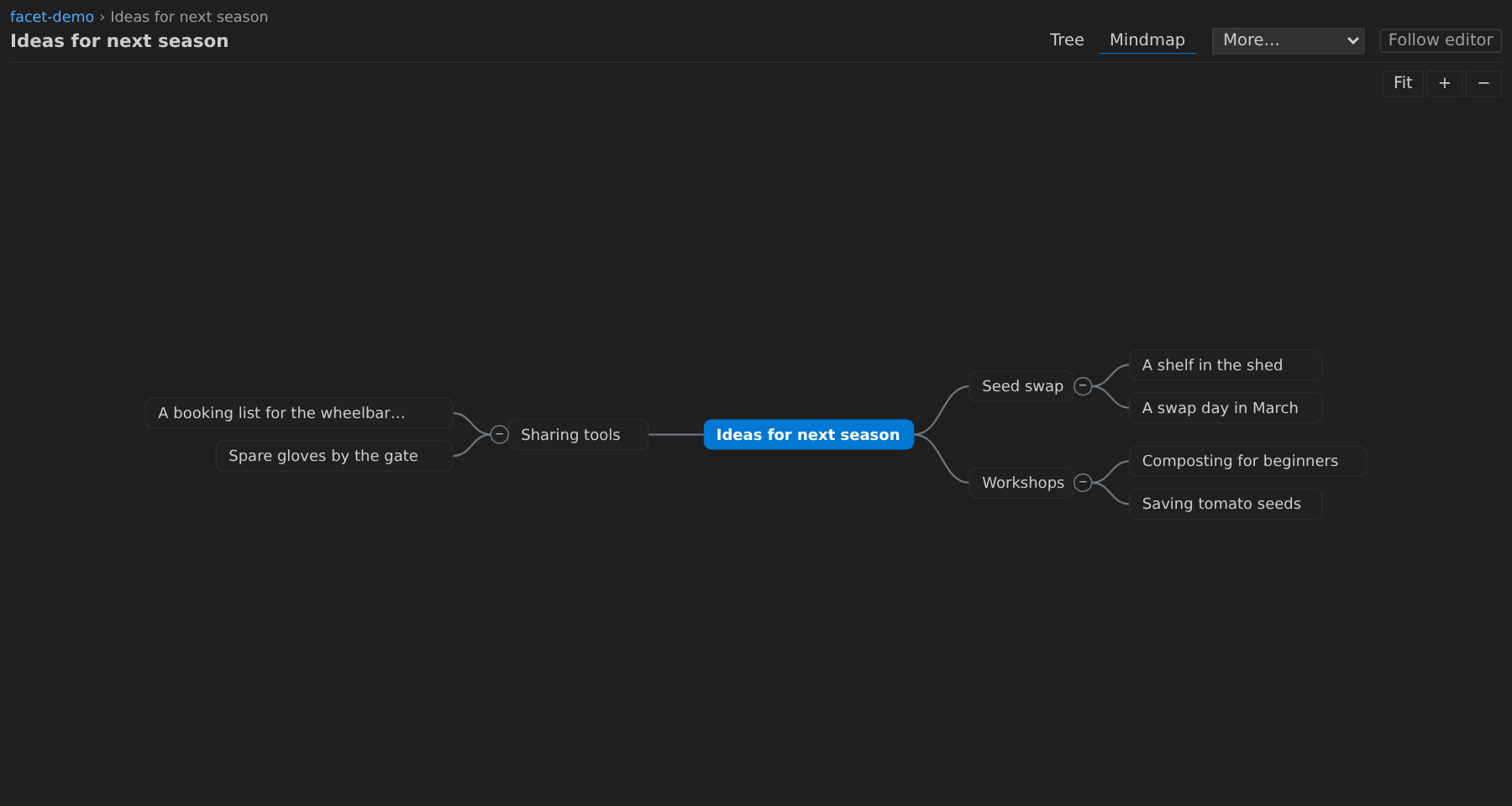
Open it
Section titled “Open it”Show a file or folder in the Facet tab and pick Mindmap in the view switcher. It is offered when the file or folder has anything below it.
A plain outline with no tasks or properties has no Facet content, so the
side bar leaves it out. Give it a type: in its frontmatter to opt it in:
---type: ideas---# Ideas for the club
- Summer trip  - Lake day  - Bike tour- Workshops  - Bread baking
See Files and workspace for what counts as Facet content.
What it shows
Section titled “What it shows”- The shown file or folder in the centre.
- Its headings and items as branches.
include:links in the frontmatter are not drawn as branches. - Checkbox states on tasks.
- A twisty on nodes with children, to fold and unfold them.
A branch keeps its side while the map is open, so the layout does not jump while you edit. A new node takes its neighbour’s side. Sides are balanced again when you show another file or folder.
Move around
Section titled “Move around”- Drag the background to pan.
- Use the mouse wheel, or the zoom buttons, to zoom.
- Fit shows the whole map.
- The arrow keys move the selection between nodes.
| Do | To |
|---|---|
| Drag a node onto another node | make it that node’s last child |
| Drag a node above or below a sibling | move it before or after it |
| F2, or double-click | rename the node |
| Tab | add a child |
| Enter | add a sibling |
| Hover, then (+) | add a child or a sibling |
| Space | tick or untick a task |
| Delete or Backspace | delete the node and everything below it |
A dragged branch can also go beside a branch on the other side, which moves
it to that side. A node moves with its properties, description and
children. Moving a node into another file asks first; references by
!id stay valid.
A node added in the mindmap is a plain list item, - title. Deleting a
node that has children asks first. How moves are written (indentation,
heading levels) is described in How Facet writes.
Select and navigate
Section titled “Select and navigate”Click a node to select it and see its details in the details pane. Ctrl+click (Cmd+click on macOS) or “Go to line” in the details pane opens its line in the text editor.